 EQkey
EQkey
Setup guide · Android
Let the app do the walking.
EQkey isn't an app you switch to — it's a keyboard. That means turning it on once, in two short steps. After that it's waiting in Messages, WhatsApp, Instagram, anywhere you already type.
Android menus are named differently on every brand, so the quickest route is to let EQkey open the right screen for you. If you'd rather go through Settings yourself, that's further down.
- About two minutes
- One time only
- No account needed
Part one
Turn the keyboard on.
Start in EQkey this time. The app opens the right settings screen for you, which saves hunting through menus that every brand names differently.
-
1
Open EQkey and tap Enable the EQkey keyboard
It's the purple button on the app's Home screen. It opens a two-step guide. Tap Step 1, or the Open keyboard settings button at the bottom — both go to the same place.
EQkey › Enable the EQkey keyboard › Step 1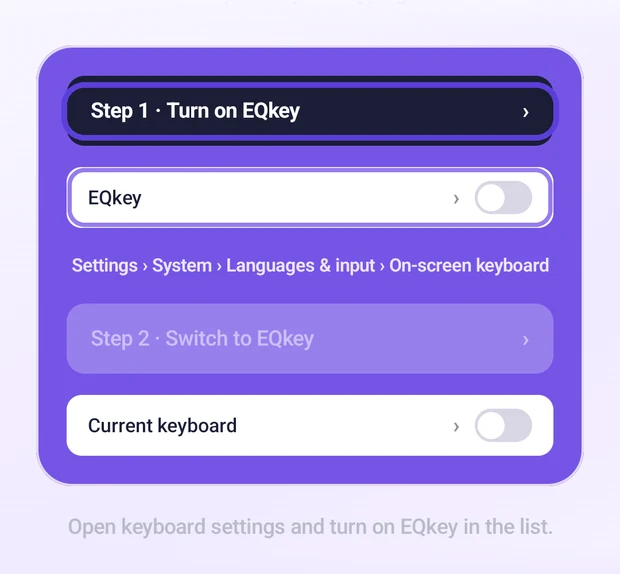
-
2
Turn on EQkey Keyboard
Android drops you on the on-screen keyboard list. Flip the switch next to EQkey Keyboard.
On-screen keyboard › EQkey Keyboard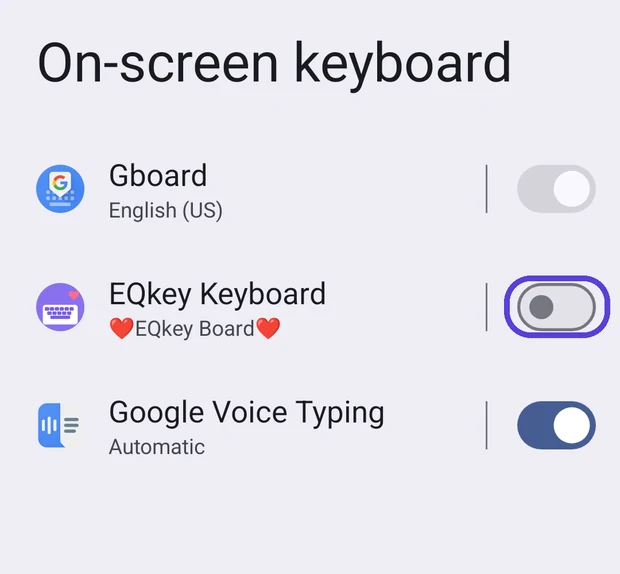
-
3
Back in EQkey, the button has changed
Step 1 now has a green tick, and the button at the bottom has relabelled itself — it says Switch keyboard instead of Open keyboard settings. Same button, next job. Tap it, or tap Step 2 in the card.
EQkey › Step 2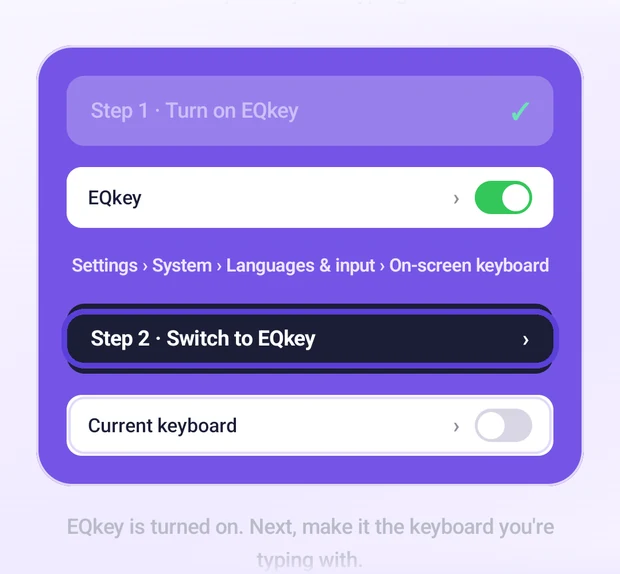
-
4
Choose EQkey Board
Android slides up its keyboard picker. Tap EQkey Board.
Keyboard picker › EQkey Board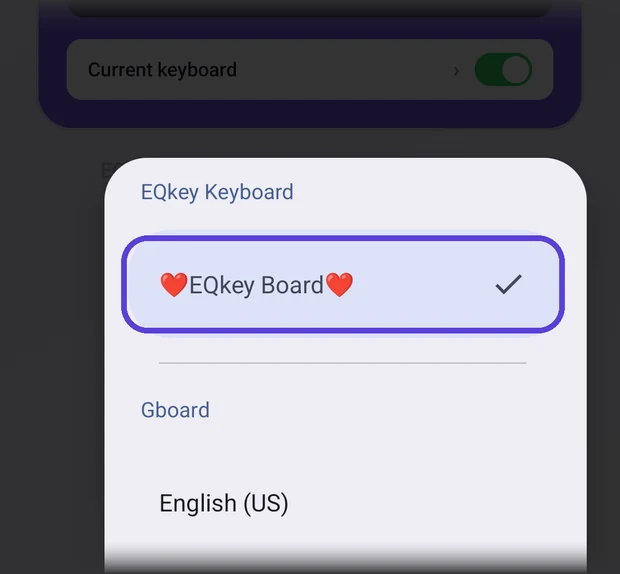
-
5
Both ticks go green
That's it — EQkey is on and it's the keyboard you're typing with. Tap Continue.
Done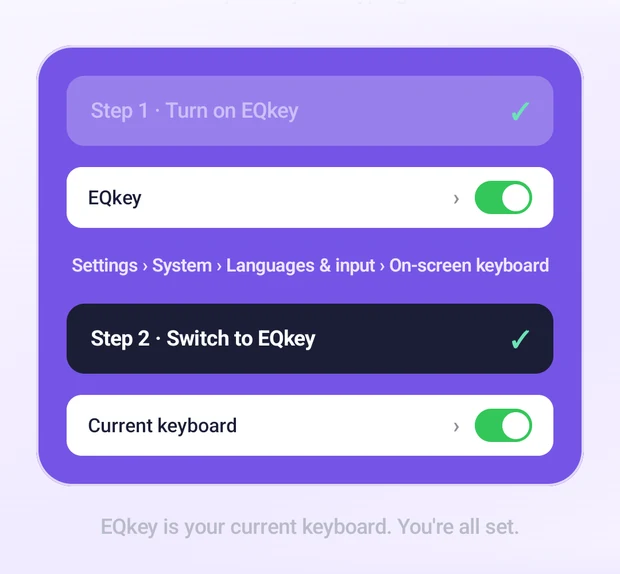
The prompt
What Android is warning you about.
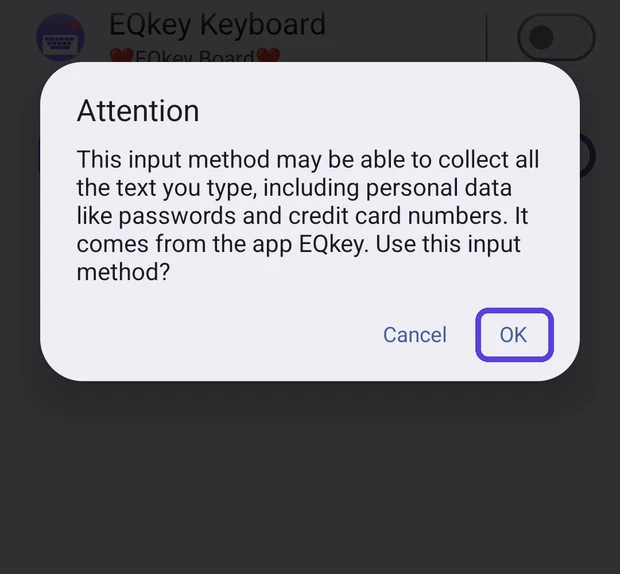
The moment you flip that switch, Android puts up a prompt of its own:
This input method may be able to collect all the text you type, including personal data like passwords and credit card numbers.
Android shows that warning for every keyboard that didn't ship with the phone, because they all get the same access. Here's what it means in EQkey:
- Your reply is written on our servers, not on the phone — which is the only reason the keyboard needs to reach the network at all.
- It's how the keyboard reads the message you copied. That copy step is deliberate — you decide what gets sent, one message at a time.
- Ordinary typing isn't collected. When you're just using the keys, nothing leaves your phone.
What we keep, and for how long, is written down plainly: see the privacy summary or the full privacy policy.
Tap OK. A second, shorter note follows about restarts — tap OK on that one too.
The other way
Or go through Settings yourself.
Same destination, more menus. Worth knowing if you ever need to turn EQkey off again.
-
1
Open Settings and tap System
Near the bottom, under Battery.
Settings › System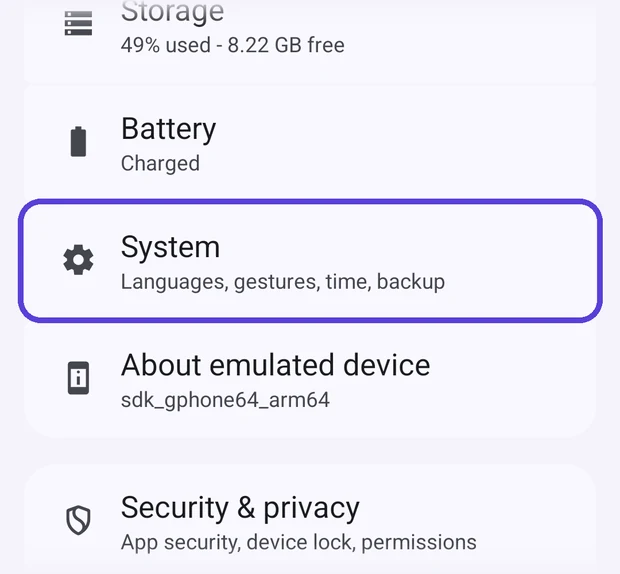
-
2
Tap Keyboard
Just below Language & region.
System › Keyboard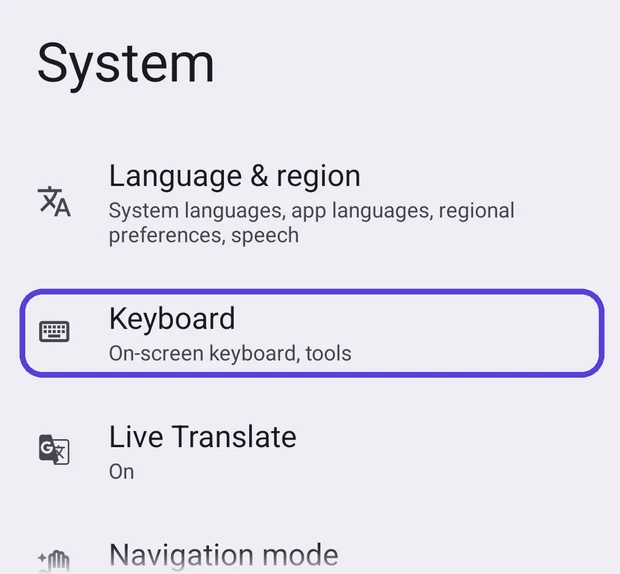
-
3
Tap On-screen keyboard
From here it's the same as step 2 above — turn on EQkey Keyboard, tap OK on the prompt, then open EQkey and use Switch keyboard.
Keyboard › On-screen keyboard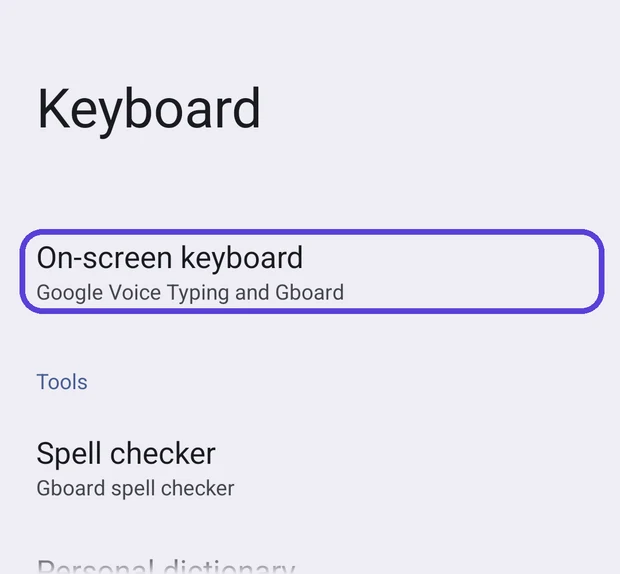
These menu names aren't the same on every phone
The screens above are stock Android. Other brands rename things — you may find it under Languages & input, or General management, or somewhere else again. EQkey's own Open keyboard settings button skips the hunt and lands on the right screen whatever your phone calls it.
Part two
Now send something with it.
Open any chat — Messages, WhatsApp, Instagram, it doesn't matter which.
They sent something and you're stuck
Copy their message, then tap Reply on the EQkey tab row. You get a few ways to answer — tap the one that sounds like you and it drops straight into the chat.
Already typed something? Send it better.
Write your draft the way you normally would, then tap Charm. It comes back rewritten a few different ways in the persona you've picked — take one, or tap for another take.
Useful when you know what you want to say but not how to say it.
Empty chat, blinking cursor
Opener gives you a first message worth answering, instead of "hey".
The keyboard icon on the left of the tab row takes you back to plain typing, and the heart on the right is your chat intimacy dial. If you ever need to hand typing back to your old keyboard, open EQkey and use Switch keyboard again.
The app itself
Where everything lives.
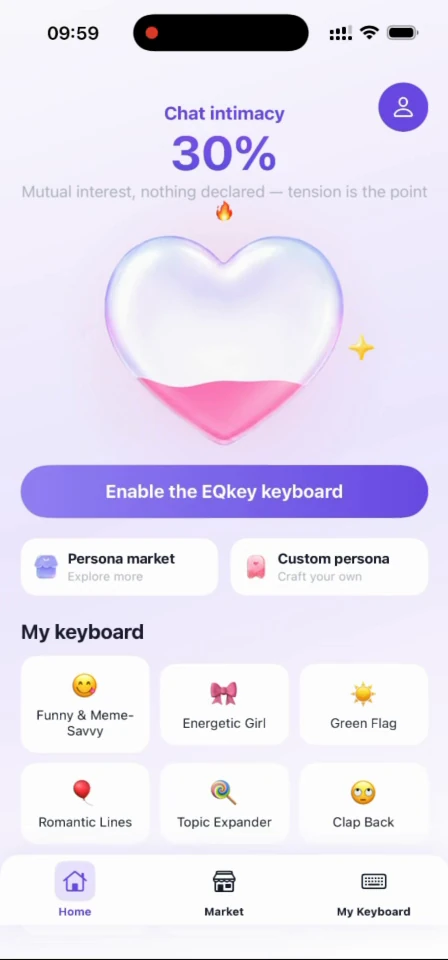
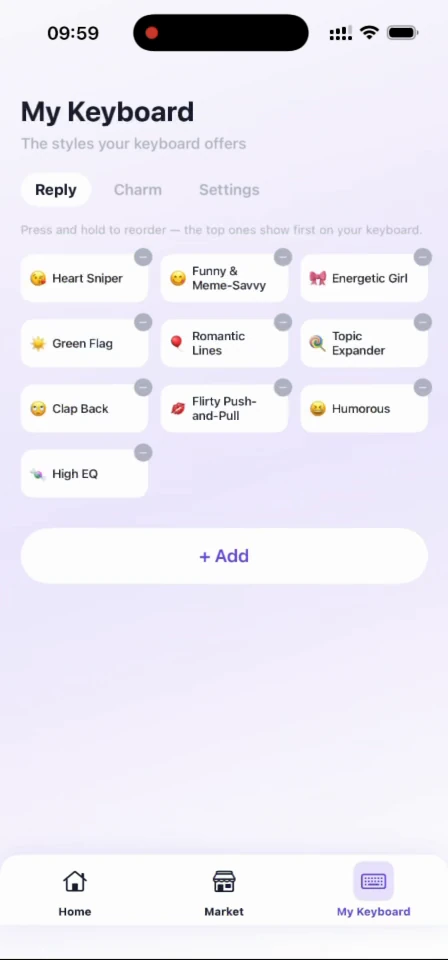
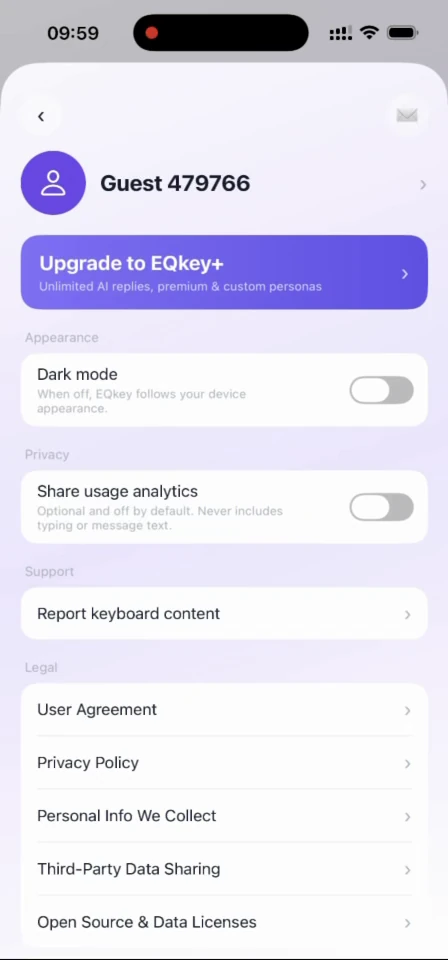
Four screens. You'll spend most of your time on the first one.

Troubleshooting
If something's off.
EQkey isn't in the on-screen keyboard list
The app has to be installed and opened at least once before Android will list its keyboard. Open EQkey, let it finish setting up, then try again.
If it's still missing, restart your phone — Android sometimes doesn't register a new keyboard until it reboots.
I'd rather do it from Settings myself
The route is Settings › System › Keyboard › On-screen keyboard, then turn on EQkey Keyboard. It's laid out screen by screen further up this page.
Be warned that the menu names change between brands and Android versions — some phones call it Languages & input, some put it under General management. If you can't find it, the app's button is the reliable way.
I turned the switch on but EQkey still isn't typing
Turning it on in the list and actually typing with it are two separate things — that's why the app's guide has two steps.
Go back to EQkey. The button at the bottom will now say Switch keyboard. Tap it and pick EQkey Board from the picker.
I tapped Cancel on the prompt by mistake
Nothing breaks. The switch just stays off. Tap it again and the same prompt comes back.
I tap Reply and nothing comes back
Check EQkey is actually the keyboard you're typing with, not just switched on in the list — those are two separate things, which is why the setup has two steps.
Then check you copied their message first. Reply answers the message on your clipboard — with nothing copied, there's nothing to answer.
The replies don't sound like me
Two things steer the tone. The persona you tap decides the voice — swap it mid-conversation whenever the mood turns.
The chat intimacy dial on the Home screen decides how forward it gets. If replies feel too familiar, move it down; too polite, move it up.
I want to turn it off again
Go to Settings › System › Keyboard › On-screen keyboard and switch EQkey Keyboard off. Android will fall back to whatever keyboard you had before.
Removing the keyboard doesn't delete your account. For that, use the link on the privacy policy page.
Something else
Write to us and say what you were doing when it went wrong — that's usually enough to find it. The contact page has the right address for each kind of question.